Let’s say you run an e-commerce site. And the CPU does a good job of taking care of everything at first. A robust and reliable system, ideal for customer requests and changing workflows. But as your business grows, you start adding AI tools, product recommendations, help with automation, and a tonne of image processing.
Traffic grows, features expand, and suddenly your CPU can’t keep up with the surge of users hitting your site all at once. Everything starts lagging, and downtime occurs. This is exactly the scenario where you need a GPU dedicated server. A GPU can handle thousands of tasks simultaneously, something a CPU was simply never designed to do. A GPU is built for a massive number of simpler tasks done all at once, which is exactly what high-volume AI workloads demand.
This article explains about GPUs (Graphics Processing Units), how they work under the hood, the different types of GPUs you’ll encounter, and their key uses in gaming, content creation, high-performance computing, etc.
The GPU full form is Graphics Processing Unit. It is a very powerful processor that works on a high number of operations by dividing bigger tasks into smaller sub-tasks and processing all of them at once. This is the exact reason why GPUs are the backbone of machine learning and artificial intelligence. Training an AI model is a matter of sifting through millions of data points, doing complicated computations, and repeating that ad infinitum until the model learns.
This is a powerful machine, capable of running advanced AI applications, and loaded with thousands of cores all working in parallel. The reason it is so fast at running deep learning models and neural networks is that it can do thousands of smaller tasks at the same time, rather than doing one thing at a time.
And it has uses beyond training data, too. “GPU servers power generative AI applications, data science projects, bots, real-time analytics, and even automation.
Say you have a massive pile of vegetables to chop. You don’t chop them one by one. You chop the vegetables into smaller pieces and chop many of them at once. A GPU works in a similar way. It breaks up a large computational job into many smaller jobs and runs them all at the same time. This makes it good for large numbers of similar calculations.
A GPU works the other way around.
Instead of handling one calculation at a time, it takes a large task, breaks it into thousands of smaller, similar pieces, and processes all of those pieces together at the same time.
Rendering a single frame of a video game is a good example of exactly this kind of work: every pixel on the screen needs its own colour and lighting calculated, and a GPU handles all of those pixel calculations simultaneously instead of computing them one by one.
This same ability turns out to matter far beyond gaming. Training an AI model involves running the same kind of repetitive, parallel calculation across millions of data points, over and over, until the model improves.
A GPU’s thousands of cores let it work through that volume of calculations at once, which is exactly why it is so much faster than a general-purpose processor at this specific kind of job.
So what does a GPU actually do, in plain terms?
It takes on the type of work that is less about doing one thing very precisely and more about doing an enormous number of similar things at the same time, which is why it shows up everywhere, from rendering graphics to training AI models to processing large volumes of data quickly.
CPUs are designed for general-purpose computing and are optimised for a smaller number of complex, varied tasks, while GPUs are designed to excel at highly parallel workloads involving large numbers of similar calculations.
When should you actually reach for a GPU instead of a CPU?
Whenever the job is really the same kind of calculation, repeated an enormous number of times, rather than a single complex decision made once. Training an AI model, rendering a video game scene, or processing thousands of images in a batch all involve the same kind of calculation repeated an enormous number of times, independently of each other, exactly the type of work a GPU is built to handle efficiently. A CPU can technically do this too, but it would work through the load one piece at a time, which becomes painfully slow at real scale.
So, can a GPU replace a CPU entirely?
No, and it was never meant to. A GPU doesn’t run your operating system, manage your files, or coordinate the rest of your system; that’s still the CPU’s job. What happens is the CPU hands off specific, repetitive, heavy tasks to the GPU, lets it process them in parallel, and takes the finished result back when it’s done. The two work together, each doing the part it’s actually built for, rather than one replacing the other.
If you want to go deeper into exactly how the two work together and where each one earns its place, we cover that in full in our GPU vs CPU guide.
A GPU and a graphics card are closely related, but they are not the same thing. The GPU is the processor that handles the actual processing, while the graphics card is the complete hardware that houses the GPU, along with its memory, cooling system, power components, and other parts needed to make it work.
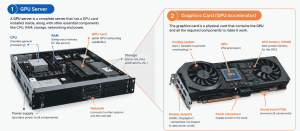
The graphics card (also called a graphics board) is the whole physical product you’d hold in your hand: a circuit board with the GPU mounted on it, along with everything the GPU needs to actually function.
A few key components included in it are:
The graphics card is everything built around that chip to actually put it to work: memory to feed it data, cooling to keep it from throttling, power circuitry to run it, and connectors so it can actually talk to the rest of the server. When people say “GPU”, they’re almost always pointing at the whole card, but now you know the chip is really just one piece of it.
At a high level, a GPU works by taking one big job, breaking it into thousands of smaller, identical pieces, and running all of those pieces at the same time instead of one after another, doing an enormous number of them simultaneously.
Parallel processing just means doing many things at once instead of one thing at a time. Picture a single cashier ringing up a hundred customers one by one, versus opening a hundred registers and checking everyone out simultaneously; same total amount of work, wildly different amount of time.
GPUs are built around this idea because a lot of the work they’re asked to do is really the same small calculation, repeated thousands or millions of times, with slightly different numbers each time. Rendering a scene means calculating colour and lighting for every pixel. Training an AI model means running the same matrix multiplication across huge amounts of data. None of those individual calculations are especially complex; there’s just an enormous volume of them, and they don’t depend on each other’s results to run.
That’s the key difference between parallel work and sequential work. A sequential task is a chain: step two needs the answer from step one, so it has to wait its turn; that’s what a CPU is built to handle well. A parallel task is the opposite: thousands of identical, independent calculations that could all happen at once, with nothing waiting on anything else. GPUs are built almost entirely around that second kind of workload.
The basic flow looks the same regardless of what the GPU is actually doing:
Take image rendering as an example. A single frame might be made up of millions of pixels, and each pixel’s final colour depends on its own lighting and shading calculation. A GPU doesn’t calculate those one pixel at a time; it assigns huge batches of pixels to different cores and works through the entire frame at once, which is exactly why a scene that would take a CPU seconds (or longer) to render finishes in a fraction of that time on a GPU.
The same pattern holds for AI. Training a model means running the same mathematical operation, multiplying and adjusting numbers, across massive amounts of data, over and over. A GPU splits that workload across its cores the same way it splits pixels across a frame, which is the whole reason GPUs became the default hardware for AI in the first place.
A GPU doesn’t work alone; it needs a CPU directing it. The CPU handles general-purpose and control tasks: running the operating system, managing the application, and deciding what needs to happen and in what order. The GPU isn’t built for any of that; it’s built specifically for high-volume, repetitive parallel work.
So in practice, the CPU acts as the coordinator. It identifies a task that’s heavy, repetitive, and parallelisable, hands that specific piece of work off to the GPU, lets the GPU chew through it using thousands of cores at once, and then picks the finished result back up when it’s ready.
A practical example: when you open a video game, the CPU is handling game logic, physics, AI behaviour, input, and what’s happening in the world moment to moment. At the same time, it’s continuously handing the visual rendering workload to the GPU, which processes millions of pixels per frame in parallel. Neither one could run the game well alone; the CPU would choke trying to render frames one pixel at a time, and the GPU has no idea what “game logic” even means. Each does the part it’s actually built for, and the two run side by side to make the whole thing work.
Not all GPUs are built the same or live in the same place. Some are built into other chips, some are standalone hardware, and some aren’t even connected to a single physical machine at all. Here’s a look at the major categories.
An integrated GPU is a graphics processor that is built into the same chip as the CPU, not a separate piece of hardware. It does not have its own dedicated VRAM but instead uses the system’s regular RAM, and it draws power and cooling from the same setup as the CPU.
Integrated GPUs are found in laptops, budget desktops, and most consumer devices anywhere manufacturers want basic graphics capability without the cost, size, or power draw of a separate graphics card.
The payoff is efficiency: lower cost, less power, and no extra hardware to put into the system. The downside is capability. An integrated GPU shares memory and power with the CPU and simply can’t match the performance of a dedicated card, especially under sustained, heavy workloads.
A dedicated GPU is a separate, standalone graphics processor, its own chip, its own VRAM, its own cooling and power delivery, installed into the system rather than built into another chip. This is the graphics card we broke down earlier: the GPU chip, memory, cooling, and power circuitry, all as one independent unit.
The difference from an integrated GPU comes down to resources. A dedicated GPU has memory and power entirely its own, not shared with anything else in the system, which means it can be pushed far harder without other components holding it back.
That extra headroom is exactly why dedicated GPUs show up in gaming PCs, workstations, and any setup doing serious rendering, video editing, or AI work anywhere the workload genuinely needs dedicated hardware rather than borrowed resources.
A virtual GPU isn’t a separate physical device at all; it’s a way of splitting one physical GPU into multiple virtual instances, each behaving like its own independent GPU to whatever’s using it. This is virtualisation: taking one piece of hardware and presenting it as several separate, isolated resources.
In practice, a single physical GPU’s compute power and memory get partitioned and allocated across multiple virtual machines or users, each getting their own slice without being aware that the others exist on the same physical card.
This shows up heavily in enterprise and cloud environments — virtual desktop infrastructure (VDI), where many users each need graphics acceleration, or multi-tenant systems, where several workloads need to share one expensive GPU efficiently rather than each requiring dedicated hardware of their own.
A cloud GPU is GPU compute power accessed remotely over the internet, rather than hardware installed in your own machine. The actual GPU lives in a data center somewhere else entirely; you’re just connecting to it and using it as if it were local. This setup is commonly provided through a GPU cloud server, where the underlying GPU resources are hosted in a remote data center.
Access works through a cloud provider’s platform: you request GPU resources, and the provider allocates compute time on their hardware to you, billed by usage rather than requiring you to own the physical card at all.
Typical workloads are the ones that need serious GPU power but don’t justify buying and maintaining the hardware yourself: AI model training, large-scale rendering, scientific computing, or short-term projects where the compute need is temporary rather than constant.
A GPU’s performance comes down to a handful of components working together: how many cores it has, how much memory it can access, how fast that memory moves, etc. Here’s what each one actually does.
GPU cores are the individual processing units that carry out the actual calculations — and a GPU processor has thousands of them, compared to the handful found on a CPU. Each core on its own isn’t especially powerful, but that’s not the point: their job is to run the same simple operation across thousands of pieces of data simultaneously, which is exactly how a GPU pulls off parallel computation. More cores generally means more work getting done at once, which is why core count is one of the first specs people look at when comparing GPU cards.
VRAM is the dedicated memory of the graphics processing unit (GPU), and it’s different from the regular RAM of your system. The VRAM stores the data that the GPU is currently processing. It’s one of the specs that most directly impacts what kind of workloads a GPU can actually handle, and every GPU card has some amount of it. In the next section, we will discuss more about how VRAM works and the importance of its size.
The memory bandwidth is the speed at which data can be transferred between VRAM and the processing cores of the GPU. They have thousands of cores ready to work, but they are only as fast as the data coming in. If you have high bandwidth, the cores stay fed and busy. If you have low bandwidth, you have a bottleneck where powerful cores are sitting around waiting for data to come in. This is a big part of what separates a really fast GPU processor from one that only looks fast on paper.
The PCIe interface is how a GPU card physically connects and communicates with the rest of the system, sending data back and forth between the GPU and the CPU, motherboard, and system memory. It’s the same slot we covered earlier when we looked at how a GPU card sits inside a server: without this interface, the GPU would be an isolated, disconnected piece of hardware, unable to receive tasks or send results back.
GPUs generate a lot of heat simply because they’re running thousands of cores at once under heavy, continuous workloads; that much simultaneous computation draws real power, and all of that power turns into heat that has to go somewhere. Without adequate power delivery and cooling, a GPU throttles itself to avoid overheating, meaning it slows down its own performance to stay within safe temperature limits. That’s exactly why the cooling system and power circuitry we looked at earlier aren’t optional extras on a graphics card; they’re what let the GPU actually sustain its performance instead of stalling out under load.
VRAM stands for video random-access memory and is a memory dedicated and built right into a GPU card, separate from the normal RAM in your system. RAM is used for general system tasks and application data, while VRAM is designed for one thing – to keep the data a GPU needs close at hand while it is actively processing it.
That data consists of things like textures, frame buffers, 3D models, and more and more the parameters and intermediate calculations involved in actually running an AI model. Whatever the GPU’s cores are working on at any given moment needs to live somewhere that’s fast enough to keep up with them, and that’s precisely what VRAM is designed for.
GPUs need this dedicated high-speed memory because of how they work: thousands of cores processing data in parallel, all at once, all needing constant access to that data. Regular system RAM isn’t built to feed that many cores that quickly; it’s a different kind of memory, optimised for different priorities. VRAM is built specifically to keep pace with a GPU processor’s demands, which is why every serious GPU card has its own, rather than borrowing from the system.
|
Factors |
VRAM |
RAM |
|
Purpose |
Feeds the GPU’s cores directly |
Supports the CPU and general system operations |
|
Location |
Built onto the GPU card itself |
Installed separately on the motherboard |
|
Speed |
Very high bandwidth, built for parallel access |
Fast, but not optimised for GPU-scale parallel workloads |
|
Shared or dedicated |
Dedicated to the GPU (except on integrated GPUs) |
Shared across the whole system |
|
Typical use |
Textures, frame buffers, model data |
Operating system, applications, background processes |
VRAM size directly determines how much a GPU can actually hold and work on at once, and that shows up differently depending on the workload.
When a workload needs more memory than the GPU actually has, performance drops sharply; data has to be swapped between VRAM and much slower system memory or storage, creating a bottleneck that undermines the GPU’s raw processing power entirely. In the worst cases, the task simply fails to run at all. This is why VRAM capacity often matters more than core count alone when choosing a GPU for memory-heavy work like AI training or high-resolution rendering.
GPUs show up in far more places than gaming these days, but understanding what is a GPU processor actually does across these different fields helps explain why it’s become such essential hardware.
Research computing broadly benefits the same way: genomics, drug discovery, and climate modelling all involve processing enormous volumes of data through repeated calculations, work that would take dramatically longer on CPU-only systems. And general computational workloads in HPC environments, anywhere a task can be broken into thousands of parallel pieces, increasingly turn to GPU acceleration as the default rather than the exception, the same underlying strength that makes a GPU useful across gaming, rendering, and AI alike.
GPU hosting is a way of accessing GPU processing power through a rented server, rather than buying and maintaining the physical hardware yourself. Instead of purchasing a GPU card and installing it in your own machine, you rent access to one running inside a provider’s data center — what’s often called a GPU server — and use it remotely for whatever workload actually needs that compute.
So what is a GPU server, exactly? It’s simply a server built around one or more GPUs instead of relying purely on a CPU, purpose-built to handle the kind of parallel, high-volume workloads a GPU is good at.
As an infrastructure concept, GPU hosting works the same way the rest of hosting does. A provider owns and maintains the physical GPU cards, housed in real servers with real cooling, power, and networking behind them, and you rent time and capacity on that hardware instead of owning it outright. You get the processing power of a high-end GPU without the upfront cost of buying one, without needing to house and cool it yourself, and without the hassle of maintaining hardware that becomes outdated within a few years.
This has become the default way most people and businesses access serious GPU power today, mainly because GPUs suited for AI training, rendering, or high-performance computing are expensive, and workloads that need them often aren’t constant. A GPU server can be spun up when it’s needed and scaled down when it’s not, which owning hardware simply doesn’t allow for.
Not all GPU hosting is built the same, and a few things are worth checking before committing to a plan:
The right GPU for AI training isn’t necessarily the right one for rendering or inference; match the card and memory to your actual workload.
A dedicated, self-managed server gives you the entire GPU to yourself, with no other workloads competing for the same compute.
Long training runs or production workloads can’t afford a server that drops mid-job, so uptime commitments matter more here than on standard hosting.
NVMe storage speed and monthly bandwidth allowances affect how quickly data actually reaches the GPU, not just how powerful the GPU itself is.
Latency to your team or users matters, especially for real-time or interactive workloads.
GPU setups are more specialised than standard hosting, so 24/7 access to a team that actually understands GPU infrastructure is worth checking for.
If you’re weighing these factors, it’s worth a look at host.co.in’s GPU hosting plans, which have dedicated GPU servers built around exactly this kind of checklist, from NVMe storage to 24/7 expert support.
Rather than list specs for their own sake, it’s more useful to look at these GPUs through what they’re actually good at, because the right choice depends entirely on the workload, not which card sounds most powerful.
The H100 is NVIDIA’s proven, general-purpose data center GPU, built on the Hopper architecture, and it’s still the default choice for most production AI work today. It handles large-scale LLM training and inference well, along with broader high-performance computing workloads, and comes with 80 GB of HBM3 memory. Enough for most models currently in production use.
Its combination of strong availability, mature software support, and solid performance makes it the practical, cost-effective pick for teams whose models comfortably fit within that memory ceiling, rather than always reaching for the newest or largest card available.
The H200 builds directly on the H100, with the same Hopper architecture and the same core compute but with a significant memory upgrade: 141 GB of HBM3e, nearly double the H100’s capacity, along with notably higher memory bandwidth.
That extra headroom matters specifically when memory, not raw compute, becomes the bottleneck: training or serving very large models, handling long-context conversations, running larger batch sizes, or packing more workloads onto fewer GPUs. If a model already fits comfortably in 80 GB, the two perform similarly; the H200’s advantage shows up precisely when a workload starts hitting the memory ceiling the H100 can’t clear.
The L4 takes a different approach entirely; it’s built for efficient, lower-power inference rather than large-scale training. It’s a strong fit for deploying small to medium AI models at scale, recommendation systems, and document or video analytics, especially in setups running many GPUs across multiple regions or edge locations.
It’s also well suited to video and media processing workloads specifically, where its efficiency-first design keeps operating costs down without sacrificing the throughput those tasks need. If the H100 and H200 are about pushing the ceiling on massive training jobs, the L4 is about running everyday inference workloads efficiently at volume.
The NVIDIA RTX PRO 6000 sits in a different category from the data center cards above; it’s a professional workstation GPU, built on NVIDIA’s newer Blackwell architecture, and genuinely versatile across AI, rendering, and compute-heavy work rather than being narrowly specialised. Its large GDDR7 memory pool and strong core count make it well suited to agentic and generative AI.
LLM fine-tuning and data science work, while its rendering and ray-tracing capability also make it a serious choice for 3D rendering, visualisation, and creative production pipelines. For teams that need one GPU capable of AI work and graphics-heavy compute without maintaining two separate hardware tracks, it’s the most flexible option of the four.
There’s no single “best” GPU; the right one depends entirely on what you’re actually trying to run, not which card has the highest specs on paper. A few questions worth answering before deciding:
Gaming and everyday tasks are well served by a mid-range dedicated GPU. If you are looking for the best GPU for AI, for AI training on large models, you need a data center GPU like the NVIDIA H100 or H200. AI inference at scale favours something efficient like the L4. Rendering, visualisation, or mixed AI-plus-graphics work points toward a professional card like the RTX PRO 6000. Match the GPU to the job first; everything else is secondary.
This matters more than almost any other spec for AI and rendering work specifically. A model or scene that doesn’t fit in memory won’t just run slower; it may not run at all or will need to be split in ways that hurt performance. Check the memory requirements of what you’re running before comparing raw compute numbers.
Some jobs are limited by how fast the cores can calculate; others are limited by how quickly data can reach those cores. The H100 and H200 share the same compute power, but the H200’s memory bandwidth advantage only matters if memory is genuinely your bottleneck; paying for it otherwise is money spent on headroom you won’t use.
Owning a GPU makes sense for constant, long-term, predictable workloads. GPU hosting makes more sense for workloads that scale up and down, projects with a defined end date, or anyone who wants access to high-end hardware without the upfront cost and maintenance of owning it.
A more powerful GPU often means higher power draw and more demanding cooling requirements, whether you’re buying hardware or comparing hosting plans. Factor in the total cost of running the thing, not just the sticker price of the card itself.
Ultimately, the right GPU is the smallest, most efficient one that comfortably handles your workload, not the biggest one available.
GPU benchmarks are tests that are standardised to measure and compare the performance of GPUs under the same conditions over and over again, instead of just looking at marketing specifications. But a benchmark is different. It doesn’t just compare core counts or memory size on paper; it actually runs real workloads, like training a model to a target accuracy or rendering a standard scene, and measures how each GPU does on that particular task. This matters because raw specs don’t always translate directly into real-world performance.
Two GPUs with similar core counts can perform very differently depending on memory bandwidth, software optimisation, and how well the workload actually uses the hardware. Benchmarks strip that ambiguity out by testing GPUs against the same task, so the results reflect what actually happens under load rather than what the spec sheet claims.
In AI specifically, MLPerf is the closest thing to an industry standard; it tests GPUs across common AI training and inference tasks, and its results are widely used to compare data center GPUs like the H100 and H200 on genuinely comparable ground. When choosing a GPU, benchmark results for a workload similar to yours are generally a more reliable signal than specs alone.
The GPU full form is Graphics Processing Unit, a processor originally built for rendering graphics, now used far more broadly for any workload that benefits from massive parallel processing, AI included.
It varies enormously depending on the type. A basic integrated GPU costs nothing extra since it’s built into the CPU, while a consumer dedicated GPU card can run anywhere from a few hundred to a few thousand dollars. Data center GPUs like the H100 or H200, and professional cards like the RTX PRO 6000, often cost very high, which is exactly why GPU hosting exists as a way to access that same power without the upfront cost. For users who need GPU computing without buying expensive hardware, a cheap GPU server can provide access to dedicated GPU resources at a lower upfront cost.
Performance drops sharply, since data has to be swapped between VRAM and much slower system memory to compensate. In many cases, the workload simply fails to run at all rather than just slowing down, which is why checking VRAM requirements against what a GPU card actually offers matters more than almost any other spec, especially for AI and rendering work.
Not necessarily. A GPU processor with more cores or higher raw compute only helps if your workload is actually compute-bound; if it’s limited by memory bandwidth or VRAM instead, a “more powerful” GPU on paper can perform no better than a cheaper one. Performance depends on how well the GPU’s strengths match the specific workload, not on specs in isolation.
On a desktop or workstation with a dedicated GPU card, yes, the card can be swapped out for a newer or more powerful one, since it’s a separate, removable component. An integrated GPU can’t be upgraded on its own, since it’s built directly into the CPU. On a GPU server or GPU hosting plan, “upgrading” usually means moving to a different plan with a different GPU, rather than physically swapping hardware yourself.
Don’t compare GPU hosting plans by price or specs alone; compare them against your actual workload. The best price-to-performance isn’t the most powerful plan available — it’s the smallest one that reliably handles your workload without paying for capacity you’ll never use.
A GPU comes down to one core idea: instead of doing one thing at a time really well, like a CPU, it does thousands of simpler things at once. That single design choice is why GPUs ended up powering gaming, video editing, 3D rendering, scientific computing, and increasingly, nearly every corner of modern AI.
Which GPU actually makes sense depends entirely on the workload. The H100 remains the reliable default for most production AI work. The H200 earns its place when memory, not compute, is the bottleneck. The L4 is built for efficient inference at scale rather than massive training runs. And the RTX PRO 6000 Blackwell sits apart as the flexible pick for anyone mixing AI work with rendering or visualisation. None of them is universally “best”; the right GPU is the one that matches what you’re actually running, not the one with the highest specs on paper.
The same logic carries into how you access that GPU in the first place. Buying hardware makes sense for constant, predictable, long-term workloads. For everything else, projects that scale up and down, workloads with a defined end date, or anyone who wants serious GPU power without the upfront cost and maintenance of owning it, GPU hosting is usually the more practical route.
If that’s where you’re headed, host.co.in’s GPU hosting plans are built around exactly the checklist covered here: the right GPU for the workload, dedicated resources, NVMe storage, and 24/7 support to back it all up.

Madhavi Potdar