When a builder wants to build a building, they do not directly jump in and start making it; they make a blueprint and follow it. A staging environment is similar: before making your website live, you store it in staging mode, where every change is made and tested rather than directly changing a live website.
Picture updating a plugin on a live WordPress site during business hours. The update looks routine; it has thousands of good reviews, and nothing in the changelog looks alarming. A minute after it finishes installing, checkout stops working. Customers midway through a purchase see an error instead of a confirmation page. It takes an hour to find the conflict, roll back the update, and get checkout working again, an hour where every visitor who tried to buy something saw the site broken, in real time.
None of this needed to happen in public. A WordPress staging environment exists for exactly this reason: to give that same plugin update somewhere private to fail first, where the only cost is time, not customers watching it happen.
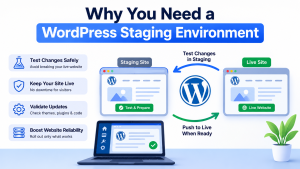
A WordPress staging environment is basically a duplicate of your live site, where you can do all your testing before applying any updates to the live site for the benefit of your visitors. The copy of the live site that you get here resembles the real one with the same theme, the same plugins, and the same content, but no visitor to your live domain will ever access this version of the site.
With the WordPress staging environment, you are getting the opportunity to create a free sandbox to experiment and break anything you want without putting yourself in danger of risking your ranking, traffic, and earnings from the website.
It should also be noted that we are not talking about the local development copy, which, as a rule, exists on the personal PC of the developer separately from the live hosting environment. On the contrary, the staging environment of your website is located on the same infrastructure as the live one.
Say you are switching to a new caching plugin. Instead of installing it directly on the live site and hoping for the best, you install it on staging first and go through the site checking that everything still works: page speed, layout, and every page loading the way it should.
If the plugin turns out to conflict with your theme and something breaks, you are the only one who ever sees it happen, and you have all the time you need to fix it or try a different plugin instead, without a single visitor noticing anything was ever wrong.
Think about an online store updating its WooCommerce payment gateway during a weekend sale. “If that update goes wrong on the live site, every customer trying to check out during that window hits a payment error, and a lot of those customers simply will not come back to try buying again later; that is real, lost revenue, not a hypothetical.
Testing the same update on staging days earlier means the mistake gets caught and corrected while nobody is watching, so by the time the sale actually starts, the live site has already been proven to work.
A homepage redesign rarely looks right on the very first attempt; something that seemed fine in your head often looks cluttered once it is actually built and sitting in a browser. On a live site, that means visitors see every rough draft along the way while you scramble to fix it in public.
On staging, you can build it, decide it is wrong, rebuild it, and keep going through as many attempts as it takes, and nobody outside your own team ever sees a version that was not ready yet.
A WordPress core update can work perfectly for a thousand other websites and still break yours specifically, simply because your particular combination of an older SEO plugin and some custom-coded feature was never part of what the update was tested against.
Running that same update on staging first means you discover that one specific conflict privately, roll it back if you need to, and wait for a fix or a compatible version, instead of your actual visitors being the ones who discover a broken site the moment the update finishes installing on the live server.
When something breaks on staging, fixing it is a calm, unhurried job; nobody is watching, nothing is losing money while you work, and you can take the time to actually understand what went wrong.
When that same thing breaks on a live site instead, you are troubleshooting under real pressure, watching support tickets come in while customers are actively hitting errors, and every extra minute the fix takes is costing you visitors or sales in real time.
The technical work involved might be identical either way; the only difference is whether you are fixing it calmly or fixing it as a crisis.
An agency finishing a website redesign can put the entire new version on staging and send the client a private link to look through everything: the layout, the content, and the fonts before a single real visitor ever sees any of it.
The client can point out what they want changed, the agency makes those changes on staging, and only once the client is genuinely happy with what they see does any of it go live.
Without staging, that kind of review would either have to happen on the old, outdated live site, where the new design cannot really be shown properly, or it would happen only after the new version was already public and impossible to quietly adjust.
Imagine restructuring a site’s entire URL and page hierarchy directly on the live site. If something goes wrong midway through, search engines can end up crawling the site while it is in that broken, half-finished state, and a bad crawl like that can quietly hurt your rankings for weeks afterward, long after the actual mistake has been fixed.
Doing that same restructuring on staging first means the live site’s search rankings are never put at risk while the change is still being worked out.
Over time, a team that always tests on staging first stops treating it as an extra step and starts treating it as how things are done, the same way saving a document becomes something you do without consciously deciding to.
That shift in habit is often the real, lasting difference between a website that occasionally breaks in front of visitors and one that seldom does.
| Staging Type | Best For | Pros | Limitations |
| Hosting Provider Staging | Most WordPress users | One click, fast, often lets you push straight to live. | Only on certain hosting plans |
| Plugin-Based Staging | Beginners, small sites | No technical knowledge needed, no server access required | Some plugins slow down the site or limit features. |
| Local Staging | Developers, designers | Works offline, safe to break things, no load on the server | Cannot show you how it will actually behave once live |
| Subdomain Staging | Businesses with a proper workflow | Mirrors the live environment closely; the whole team can access it | Needs manual setup and upkeep |
| Subdirectory Staging | Small to medium sites | Easier to set up than a separate server, same hosting environment | Needs to be kept away from search engines and outsiders |
| Separate Server Staging | Enterprise, high-traffic sites | Nearly a mirror of production, good for big teams working together | Costs more, more to maintain |
For most readers, hosting provider staging is the easiest starting point since it needs no setup and mirrors the live site exactly. Developers testing early-stage work benefit from local staging, while businesses with a full team and complex workflows tend to outgrow the simpler options and move toward subdomain or separate server staging as they scale.
Staging is like a practice website. It’s a replica of your live site, with the same theme, the same plugins, and the same content. Still, it’s invisible to anyone visiting your real domain and completely unaffected by whatever you do on it.
Here’s what really happens, step by step:
Your site is copied. Everything – your files, your database, your settings – is copied over to a separate private version. This is not a stripped-down demo; this is a real working copy of your entire site.
You make your changes there first. Updating a plugin, redesigning a page, testing a new feature, whatever it is – you do it on this copy, not on the real site. If something breaks, it breaks quietly, and only you see it. Nobody who visits your actual website even knows staging exists.
You test until it actually works. This is the part a lot of people skip when working directly on a live site; there’s no room to get it wrong a few times first. On staging, you can try something, see it fail, fix it, and try again, as many times as you need.
Once it works, you move it to the real site. Some hosts let you do this with a single click, copying your tested changes straight over. Others need you to move the changes across manually. Either way, what finally reaches your visitors has already been tested and proven to work; nothing goes live as a guess.
That’s really the whole idea: staging gives you a safe place to make mistakes, so your actual website never has to be where you find them.
Every WordPress site really exists in two versions, whether you think about it that way or not. The live site is the one doing the actual work; it is public, it is what shows up in Google’s search results, and it is where your visitors, your customers, and your revenue all live.
Anything that goes wrong there is not a private mistake; it is something a real person runs into, in real time, while trying to buy something, read something, or trust your business.
The staging site exists purely to absorb that risk before it ever reaches the live one. It looks and works exactly like the real site, but nobody outside your team can see it, and Google never indexes it, so nothing that happens there affects your search rankings or your visitors.
This is where a plugin update gets to fail quietly, where a redesign gets to look wrong a few times before it looks right, and where a mistake costs you a few minutes instead of a customer.
The table below lays out exactly where these two diverge, but the underlying idea is simple: one version carries all the real consequences, and the other exists so those consequences never have to happen in public.
| Feature | Live Site (Production) | Staging Site (Sandbox) |
| Visibility | Public (Everyone) | Private (You/Your Team) |
| Google Indexing | Yes (Indexed for SEO) | No (blocked via noindex) |
| Purpose | Traffic and Conversions | Testing and Development |
| Risk Level | High (Errors impact users) | Zero (errors are hidden) |
Most good managed WordPress hosting plans today build staging directly into their hosting dashboard… and this is usually the easiest and most reliable option available. You open your hosting control panel, find the staging option, and click to create a clone of your live site. No plugin to install, no manual file copying, and no separate technical setup required.
Because it runs on the same infrastructure as your live site, it also gives you the most accurate testing conditions of any method, which matters more than it sounds; a change that works perfectly on mismatched infrastructure can still behave differently once it reaches the real server. If your hosting plan includes this, it is almost always the first option worth reaching for.
host.co.in‘s WordPress hosting includes built-in, one-click staging as part of the plan, so there is no separate plugin to manage and no manual setup involved — you get a working staging copy the moment you need one, running on the same infrastructure as your live site.
If your host does not offer built-in staging, a plugin is the next best option. Tools like WP Staging or Duplicator let you create a staging copy directly from inside your WordPress dashboard, without needing any server-level access.
You install the plugin, run it, and it handles cloning your files and database into a separate staging copy for you. This is a solid, accessible option for anyone on hosting that does not support staging natively, though it is worth checking that whichever plugin you choose plays well with your specific combination of theme and other plugins before relying on it heavily.
If staging is left open to search engines, Google can index it right alongside the live site — and now you have duplicate content competing with your real pages, or worse, a half-finished, broken version of your site showing up in search results.
If staging was cloned from the live site months ago and never refreshed, testing on it stops meaning much; you are testing against an old version of your site, not the one visitors are actually seeing today.
Once staging exists, it is tempting to get sloppy on the live site itself, assuming staging will catch everything. Staging only helps if changes actually get tested there first, not pushed live out of habit because “we have staging now anyway.”
A staging environment left active long after its testing is done is still consuming resources, and it is one more thing that needs to stay updated and secured — an old, forgotten staging site is itself a security risk if nobody is maintaining it.
Staging still contains a full working copy of the site, including real content and sometimes real data. Leaving it unprotected, with no password and no access restriction, defeats the purpose of keeping it private in the first place.
Add a noindex tag, or use whatever built-in “discourage search engines” option your host or plugin provides, so staging never ends up competing with your real pages in Google’s results.
Sync it with the live site on a routine basis, after major live-site changes, or on a set schedule so whatever you test on staging still reflects what visitors are actually seeing today.
Make testing on staging the habit for every meaningful change, rather than something you reach for occasionally while still editing the live site directly out of convenience.
Once testing is done and changes are live, take staging down or reset it, instead of leaving an old, unmaintained copy sitting around as an unnecessary security risk.
Password-protect staging, or limit it to your team and IP addresses if your host supports that, since it holds a full working copy of your site and should never be left open to anyone who happens to find the link.
A live site is the public version visitors actually see, indexed by Google, where any error affects real people. A staging site is a private copy used purely for testing, hidden from search engines, where the same error costs nothing but a few minutes to fix.
Not necessarily. Many hosts offer built-in, one-click staging with no plugin required. If your host does not, a staging plugin like WP Staging or Duplicator is the next best option.
It can, if you forget to noindex it. Most hosting-provided staging tools block indexing automatically, but manually set up staging (a subdomain or subdirectory) needs a noindex tag or password protection added deliberately, or it risks showing up in search results.
Regularly enough that it still reflects your live site, after major changes or on a routine schedule. A staging site cloned months ago and never refreshed is testing against an outdated version of your site, not the one visitors are actually seeing.
Not always. Built-in staging is often limited to certain hosting plans or tiers, so it is worth checking what your specific plan includes. If it is not available, a staging plugin works on virtually any WordPress hosting setup.
No. Staging runs as a separate, private copy, so it does not add any load to your live site or affect its performance in any way.
Only the specific changes you push over go live; staging itself keeps running separately, ready to be reused for the next round of testing, updated, or reset, depending on how your setup handles it.
No, and this is a common mix-up. A backup is a saved copy of your site at a point in time, used to restore if something goes wrong. Staging is an active working copy used for testing changes before they go live. Having staging does not replace the need for regular backups.
A WordPress staging environment is not an extra precaution for advanced users — it is the difference between testing a change safely and testing it on real visitors. Every plugin update, every design change, every core update carries some risk of breaking something, and staging exists so that risk gets absorbed privately, before it ever reaches the live site.
Whether you use built-in hosting staging or a plugin, the habit matters more than the method: test first, fail quietly, and only push to the live site once it has already been proven to work.
Whether you use built-in hosting staging or a plugin, the habit matters more than the method, and if your current hosting does not offer staging built in, host.co.in’s WordPress hosting includes it as standard, so testing safely is never an extra step to set up.

Prathamesh Suryawanshi