
You are not alone if you’ve ever wondered how to connect Python with MySQL. Because Python is great at processing and analysing data, and MySQL is great at storing it in a structured way. Together, they make a powerful combination. When you use these two strengths together, they create new opportunities for your websites and applications.
This Python MySQL connection is commonly used in real-world applications like login systems, dashboards and data analysis projects that fetch information directly from a database. They’re also widely used in automation scripts that update, organise, or process data behind the scenes without any manual effort.
This article will show you how to do just that. Read on to learn how to connect Python with MySQL and how to handle errors and how to keep your Python MySQL connection efficient.
But what you need before connecting Python with MySQL
You need to make sure you meet the following requirements:
You can connect Python and MySQL once you’ve met these requirements.
Before we jump into writing code, it helps to understand what really happens when Python connects to a MySQL database. Once you see the bigger picture, the technical steps will feel much simpler.
Python and MySQL databases make use of a client-server architecture to communicate with each other.
Think of MySQL as a server that stores and manages data. It sits quietly in the background, waiting for instructions. Python sends instructions to it. Once the request is received by the MySQL server, it processes it and then sends the final output back to the Python script.
Here is an important point to remember that Python and MySQL don’t understand each other’s language. And in order to help them communicate with each other easily, they need a middleman-like system which translates the conversation between them.
That translator is referred to as a Database Driver or Connector.
A connector or a database driver is a special library that allows Python to:
Without a connector, Python simply wouldn’t know how to “communicate” with MySQL.
One of the most commonly used connectors is MySQL Connector/Python.
It’s an official library provided by MySQL that allows Python applications to connect directly to MySQL databases. It handles things like:
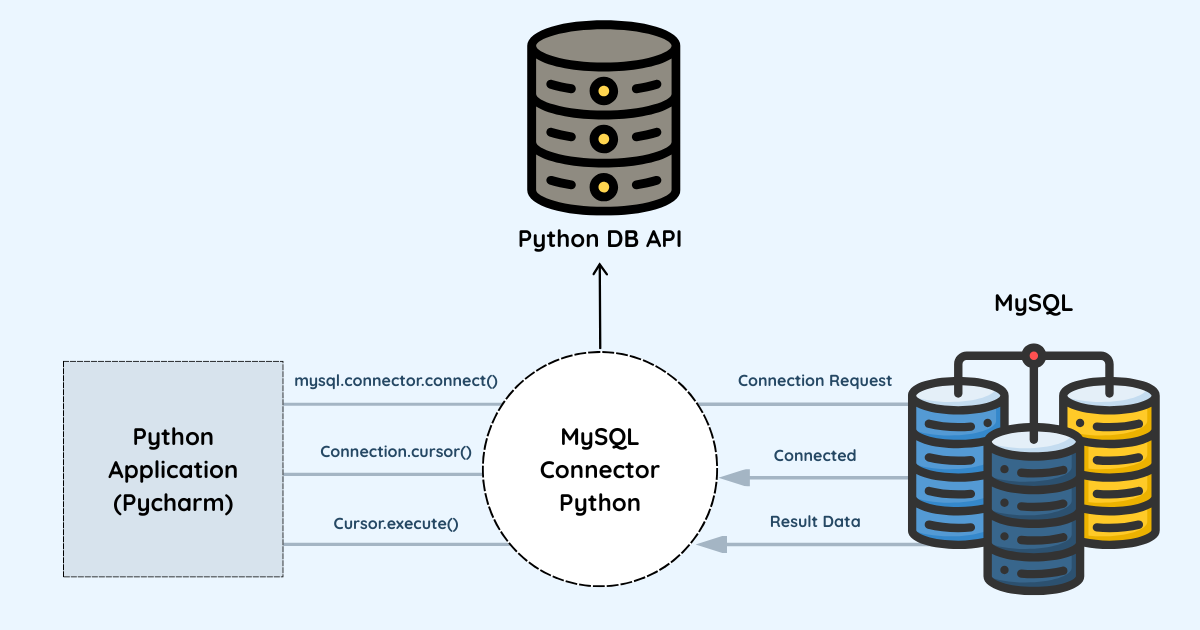
Python MySQL Connection Flow Diagram
This is what usually goes on in the background, even though you don’t see it happening.
This is the best way to install Connector/Python.
Check that your system has the most recent version of pip. You may need to update pip if it is already installed on your system. You can also use the pip installer by itself.
shell> pip install mysqlx-connector-python
Your system’s repository list must include the MySQL Yum repository. Use the following command to check that your Yum repository is up to date:
shell> sudo yum update mysql-community-release
Then, set up Connector/Python using the following command:
shell> sudo yum install mysqlx-connector-python
Use the following command in order to install a Connector/Python RPM package. Here it is denoted as PACKAGE.rpm:
shell> rpm -i PACKAGE.rpm
Use the following command to install a Connector/Python Debian package. Here it is denoted as PACKAGE.deb:
shell> dpkg -i PACKAGE.deb
Requirements:
As of Connector/Python 2.2.3, source distributions come with a C++ Extension that connects to a MySQL server with the X plugin turned on and uses Protobuf as the data interchange format.
To make the Connector/Python C++ Extension for Protobuf, you need to meet the following requirements:
If you want to install Connector/Python from a tar archive, it is necessary to download the newest version and execute the following commands. Here the newest version is denoted as <version>:
shell> tar xzf mysqlx-connector-python-<version>.tar.gz

shell> cd mysqlx-connector-python-<version>.tar.gz

shell> python setup.py install --with-protobuf-include-dir=<protobuf-include-dir> --with-protobuf-lib-dir=<protobuf-lib-dir> --with-protoc=<protoc-binary>
Use this command to see all the options and commands that setup.py supports:
shell> python setup.py --help
If you want to connect to a MySQL database using the PyMySQL library in Python, the process is quite simple. First, install the library and import it into your script. Then, use your database credentials to open a connection, create a cursor to run your queries, and once you’re done working with the database, close the connection properly.
Steps to follow:
Open your terminal or command prompt and install the library using the following pip command.
pip install PyMySQL
Import the pymysql module to your Python script, using the following command:
import pymysql
In order to set up a connection, you need to use the pymysql.connect() method along with your database details. It’s best to use a try-except block to handle connection problems if they pop up.
try:

connection = pymysql.connect(

host='localhost', # Your MySQL host (e.g., '127.0.0.1' or IP address)

user='yourusername', # Your MySQL username (e.g., 'root')

password='yourpassword', # Your MySQL password

database='yourdbname', # The specific database to connect to

port=3306, # The MySQL port (default is 3306)

cursorclass=pymysql.cursors.DictCursor # Optional: returns results as dictionaries

)

print("Connected to the MySQL database successfully!")

except pymysql.Error as e:

print(f"Error connecting to MySQL database: {e}")
It is required to create a cursor object so that you can run your SQL queries and interact with the database.
cursor = connection.cursor()
When you want to execute different SQL commands like SELECT, INSERT, UPDATE, or DELETE, it is recommended to use the cursor object’s execute() method.
# For Example: Execute a SELECT query

sql_query = "SELECT * FROM your_table_name"

cursor.execute(sql_query)
# Fetch and print results (optional)

results = cursor.fetchall()

for row in results:

print(row)
If you make any changes to your data, such as adding, modifying or deleting some data, it is required that you save them manually. These changes will not be saved automatically. You’ll need to save these changes to the database manually, and for that you’ll need to run the connection.commit() method.
After you finish running your SQL queries, it is recommended to close the connection to the MySQL server.
The connect() constructor is used to establish a connection to a MySQL server. Once the connection is successful, it returns a MySQLConnection object that allows you to interact with the database.
The following example demonstrates how to connect to a MySQL server.
import mysql.connector
cnx = mysql.connector.connect(user='ava', password='password123',

host='127.0.0.1',

database='employees_db')

cnx.close()
You can also create a connection object using the connection.MySQLConnection() class.
from mysql.connector import (connection)
cnx = connection.MySQLConnection(user='ava', password='password123',

host='127.0.0.1',

database='employees_db')

cnx.close()
Both approaches, i.e. using the connect() constructor or calling the class directly, work the same way.
You can manage connection errors by using a try statement and catching them with the errors. Error exception.
import mysql.connector

from mysql.connector import errorcode
try:

cnx = mysql.connector.connect(user='ava',

database='employee')

except mysql.connector.Error as err:

if err.errno == errorcode.ER_ACCESS_DENIED_ERROR:

print("The login details you entered are not correct.")

elif err.errno == errorcode.ER_BAD_DB_ERROR:

print("The database could not be found.")

else:

print(err)

else:

cnx.close()
Another way to do this is by storing the connection arguments in a dictionary and passing them using the ** operator.
import mysql.connector
config = {

'user': 'ava',

'password': 'password123',

'host': '127.0.0.1',

'database': 'employees_db',

'raise_on_warnings': True

}
cnx = mysql.connector.connect(**config)
cnx.close()
Set up the logger options, create a reconnection routine, and define a connection method called connect_to_mysql.
import logging

import time

import mysql.connector
# Setting up logger

logger = logging.getLogger(__name__)

logger.setLevel(logging.INFO)
formatter = logging.Formatter("%(asctime)s - %(name)s - %(levelname)s - %(message)s")
# Logging in to console

handler = logging.StreamHandler()

handler.setFormatter(formatter)

logger.addHandler(handler)
# Also logging in to a file

file_handler = logging.FileHandler("cpy-errors.log")

file_handler.setFormatter(formatter)

logger.addHandler(file_handler)
def connect_to_mysql(config, attempts=3, delay=2):

attempt = 1

# Implement a reconnection routine

while attempt < attempts + 1:

try:

return mysql.connector.connect(**config)

except (mysql.connector.Error, IOError) as err:

if (attempts is attempt):

# Attempts to reconnect failed; returning None

logger.info("Failed to connect, exiting without a connection: %s", err)

return None

logger.info(

"Connection failed: %s. Retrying (%d/%d)...",

err,

attempt,

attempts-1,

)

# progressive reconnect delay

time.sleep(delay ** attempt)

attempt += 1

return None
Here’s how you can connect to and use the Sakila_db database using the routine above, assuming it is saved in a file called myconnection.py.
from myconnection import connect_to_mysql
config = {

"host": "127.0.0.1",

"user": "user",

"password": "pass",

"database": "sakila_db",

}
cnx = connect_to_mysql(config, attempts=3)
if cnx and cnx.is_connected():
with cnx.cursor() as cursor:
result = cursor.execute("SELECT * FROM actor LIMIT 5")
rows = cursor.fetchall()
for rows in rows:
print(rows)
cnx.close()
else:
print("Could not connect")
Connector/Python comes with two options: a pure Python interface and a C Extension that works with the MySQL C client library. You can configure this during runtime by using the use_pure connection argument. In MySQL 8, this option is set to False by default, which means the C Extension is used automatically. If the C Extension isn’t available on the system, the use_pure option automatically defaults to True. Setting use_pure=False allows the connection to use the C Extension if it is available in your Connector/Python installation. If the extension is not available, it falls back to the Python implementation.
The example below shows how you can set use_pure to False:
import mysql.connector
cnx = mysql.connector.connect(user='ava', password='password123',

host='127.0.0.1',

database='employees_db',

use_pure=False)

cnx.close()
You can also use the C Extension directly by importing the _mysql_connector module instead of the mysql.connector module.
Once you’ve installed the MySQL Connector, it is very easy to connect Python to a MySQL database using a simple script. We’re sharing a working script that opens a database connection, creates a cursor to run queries, and then saves the changes and finally, closes the connection securely.
import mysql.connector
# Step 1: Set up the connection to the MySQL server

connection = mysql.connector.connect(

host="localhost",

user="your_username",

password="your_password",

database="your_database"

)
# Step 2: Create a cursor for executing SQL queries

cursor = connection.cursor()
# Step 3: Run a sample SQL command (creating a table)

cursor.execute("""

CREATE TABLE IF NOT EXISTS users (

id INT AUTO_INCREMENT PRIMARY KEY,

name VARCHAR(100),

email VARCHAR(100)

)

""")
# Step 4: Save the changes to the database

connection.commit()
print("Table created successfully!")
# Step 5: Properly Close your cursor and database connection

cursor.close()

connection.close()
A function mysql.connector.connect() is used to connect Python to the MySQL database. And for this connection, it requires you to provide some important information, like the host, username, password, and the database name.
The cursor works as a link between Python and the database. Using it you can run SQL queries, like creating a database, inserting and retrieving data.
Using the commit() method, you can save any changes that are made during the session. Make sure you save your changes otherwise nothing will be saved in the database.
Using the close() method, you can securely close the cursor and database connection. It is a good practice to close connections after completing your tasks. Because it helps to free up server resources and keeps the database running smoothly.
When the connection details are accurate and the query runs successfully, you’ll see the following output:
Table created successfully!
This shows that the connection between the Python and MySQL database has been established successfully, therefore, it can carry out the SQL command without any issues.
import mysql.connector
# Enter your MySQL server details

db_connection = mysql.connector.connect(

host="localhost1",

user="rootuser", #user_name

password="root123" #password

)
# Create a cursor to execute SQL queries

cursor = db_connection.cursor()
# Replace 'your_database_name' with your desired database name

create_database_query = "CREATE DATABASE test123_db"

cursor.execute(create_database_query)
# Commit the changes

db_connection.commit()
# Close the cursor and the connection

cursor.close()

db_connection.close()
First of all, connect to MySQL databases, then import the necessary library and connect to your MySQL database. Enter the required information in the respective fields, like your_database name, your-Password, and your_host name.
When it comes to connecting with MySQL databases with the help of Python, a cursor is the most important element that allows you to run SQL queries and retrieve data easily from the database.
A cursor works as a link between your Python code and the MySQL database. It makes it possible to carry out different operations like reading, writing, updating, and deleting data.
import mysql.connector
# Enter your MySQL database credentials

db_connection = mysql.connector.connect(

host="localhost1",

user="roousert",

password="root123",

database="test123_db"

)

# Create a cursor to run SQL queries

cursor = db_connection.cursor()

# Example of creating a table

create_table_query = """

CREATE TABLE test123_table(

id INT AUTO_INCREMENT PRIMARY KEY,

name VARCHAR(50),

age INT

)

"""

cursor.execute(create_table_query)

db_connection.commit()
import mysql.connector
# Enter your MySQL database credentials

db_connection = mysql.connector.connect(

host="localhost1",

user="rootuser",

password="root123",

database="test123_db"

)

# Create a cursor to execute SQL queries

cursor = db_connection.cursor()

# Example of inserting data into the table

insert_data_query = """

INSERT INTO test_table (name, age) VALUES (%s, %s)

"""

data_to_insert = ("Leo Oliver", 35)

cursor.execute(insert_data_query, data_to_insert)

db_connection.commit()
Use the UPDATE command/statement to update/modify the existing data in the table.
import mysql.connector
# Enter your MySQL database credentials

db_connection = mysql.connector.connect(

host="localhost1",

user="rootuser",

password="root123",

database="test123_db"

)

# Create a cursor to execute SQL queries

cursor = db_connection.cursor()

# Example of updating data in the table

update_data_query = """

UPDATE test_table SET age = %s WHERE name = %s

"""

new_age = 35

name_to_update = "Leo Oliver"

cursor.execute(update_data_query, (new_age, name_to_update))

db_connection.commit()
Use the DELETE statement in order to delete particular data from the database.
import mysql.connector
# Enter your MySQL database credentials

db_connection = mysql.connector.connect(

host="localhost1",

user="rootuser",

password="root123",

database="test123_db"

)

# Create a cursor to execute SQL queries

cursor = db_connection.cursor()

# Example of deleting data from the table

delete_data_query = """

DELETE FROM test_table WHERE name = %s

"""

name_to_delete = "Leo Oliver"

cursor.execute(delete_data_query, (name_to_delete,))

db_connection.commit()
SQL injection is an abbreviation for SQLi, is a security vulnerability. In this type of attack a malicious code is inserted into a database query to gain unauthorised access to a web application’s database. Attackers use SQL injection techniques to alter SQL queries and run malicious commands, which allow them to access to sensitive data or compromise the database server.
A successful SQL injection attack can expose sensitive information stored in the database, including intellectual property, admin credentials, and customer data. SQL injection attacks can be used to exploit different types of SQL databases, such as MySQL, SQL Server, and Oracle. In most cases, SQL injection usually attacks target web applications that are connected to a backend database.
SQL injection is one of the most common ways attackers use to get into databases without any permission. Attackers commonly use this technique with the help of automated tools to carry out a large number of attacks at a time.
Attacks by SQL injection can be prevented by implementing parameterised queries by segregating SQL code from the user input data. These queries use placeholders for inputs instead of inserting user inputs directly into the SQL statement in the form of strings. Which stops attackers from altering the structure of the query. At this stage, the database engine securely inserts the provided values into these placeholders, ensuring they are treated only as a data and not as executable commands.
For example, think about a login system where a person gives their username and password. This is a weak way to write the query:
SELECT * FROM users WHERE username = 'user_input' AND password = 'user_password';
If you put user inputs directly into this string, an attacker could use something like ” OR “1”=”1 as the username, which would lead to:
SELECT * FROM users WHERE username = '' OR '1'='1' AND password = 'anything';
This would get around authentication. Use a parameterized query to stop this from happening. This is what the implementation looks like in many programming languages (for example, in Python using a DB-API):
query = "SELECT * FROM users WHERE username = ? AND password = ?"

cursor.execute(query, (username, password))
In this case, the username and password are sent as parameters instead of being added to the SQL string. The database driver makes sure they are handled safely.
Here’s another example that uses named parameters, which you can do in Python with SQLite or in other places:
query = "SELECT * FROM users WHERE username = :user AND password = :pass"

cursor.execute(query, {'user': username, 'pass': password})
Most modern database libraries and frameworks let you use parameterized queries.
The interpreter runs the code when you import a module into a Python app. This means you need to be careful when you import modules.
The PyPi package index is a great resource, but you can’t be sure that all the code in the libraries it lists is safe. There are a lot of bad packages on PyPi, and some of them try to trick people by using names of well-known libraries with small spelling mistakes.
If you’re not sure if the outer packaging is real or what it contains, do some more research. If you’re still not sure where it came from or how safe it is, don’t use it.
Making a list of security best practices and going over it before releasing your code or moving it to a test environment is the first step in stopping security holes like SQL injections. You should follow these best practices during development and check them automatically during testing. You should use automated tools that check your code at every step of the software development lifecycle (SDLC).
Linters are tools that give you automated advice on how to write good code. They are basic static application security testing (SAST) tools that look at source code while a project is being developed. You can use linters by hand in the editor, as part of a local development process, or as part of an automated testing process.Python has a few linters, such as:Pylint: is the main linter for Python. It focuses on bad coding practices, some of which can make your code less secure. But it doesn’t give a lot of security advice.
Bandit: This tool can help you find common security problems in your Python code. Bandit goes through each file, makes an AST node, and then tests it with the right plugin.
Python IDEs: Python IDEs like PyCharm and Wingware come with these tools and more will be added. Text editors can also get plugins that help with security.
You can use the try block to check a block of code for mistakes.
You can deal with the error in the except block.
The else block lets you run code when there isn’t an error.
The finally block ensures that a piece of code runs regardless of whether an error occurs in the try or except blocks.
When Python runs into an error, which we call an “exception,” it usually stops and shows an error message.
You can use the try statement to deal with these exceptions:
For example,
Because Y is not defined, the following try block will cause an exception:
try:

print(Y)

except:

print("An exception occurred")
The except block will run because the try block causes an error. But the program will crash and give an error if there is no try block:For example,
An error will occur here, as the variable Y hasn’t been declared or assigned a value.
print(x)
You can make as many exception blocks as you want. For example, if you want to run a special piece of code when a certain type of error happens:
For example
If the try block raises an Exception, print one message; if it raises any other error, print another:
try:

print(Y)

except Exception:

print("Variable Y hasn’t been defined yet")

except:

print("Looks like something doesn’t work")
MySQL errors are grouped into different categories, each linked to a specific Python exception class.
| Error Code | Error Message | Python Exception Class |
| 1040 | Too many connections | OperationalError |
| 1045 | Access denied for user | ProgrammingError |
| 1054 | Unknown column in ‘field list’ | ProgrammingError |
| 1062 | Duplicate entry for key ‘PRIMARY’ | IntegrityError |
| 1064 | Syntax error | ProgrammingError |
| 1146 | Table doesn’t exist | ProgrammingError |
| 2006 | MySQL server has gone away | OperationalError |
Flask is lightweight and flexible, so connecting it to MySQL is simple. You just use a library like Flask-MySQL or SQLAlchemy, and you’re ready to run queries and manage your data with minimal setup.
Django comes with a built-in ORM that makes working with MySQL almost effortless. You just set your database in the project settings, and Django handles everything from connections to migrations automatically.
Connection pooling helps your web app stay fast and efficient by keeping a set of database connections ready to use, so your Python app doesn’t have to open a new connection every time it talks to MySQL.
When you take your applications live, you want it to run smoothly. It keeps your database running efficiently, errors under control, and everything secure.
You should not struggle when trying to improve the performance of your Python and MySQL connection. Using connection pooling helps reuse database connections instead of creating new ones every time, which speeds things up. Proper indexing makes your searches faster, and batch inserts let you add many records at once rather than handling them individually. Using caching lets your application keep often-used data ready in memory for lightning-fast access, while optimizing your queries helps your database run smoothly and keeps everything running quickly.
When working with Python and MySQL, it’s easy to run into avoidable mistakes.
Always use environment variables instead of hardcoded passwords. Don’t forget to close your database connections in order to prevent leaks; don’t use the root user for day-to-day tasks. Pay attention to encoding to prevent data issues, and make regular backups to protect your data.
| Library | Speed | Ease of Use | Perfect for |
| mysql-connector | Medium | Easy to use | Beginners |
| PyMySQL | Fast | Easy to use | Lightweight applications |
| MySQLdb | Fast | Medium | Legacy systems |
| SQLAlchemy | High | Advanced | ORM users |
You’ll find the full step-by-step guide earlier in this blog. Check out the section on connecting Python with MySQL for all the details.
MySQL Connector/Python is the most commonly used option because it is easy to use and officially approved. There are some other connectors which you can consider, including PyMySQL or mysqlclient.
Absolutely! You can totally connect Python to a remote MySQL server. It requires the server’s address, username, and password.
Yes! MySQL is a really good option for Python web applications, as it works really well with Python.
Connection errors usually arise because of the wrong credentials, server issues, or network settings. Check the sections above on error handling and common MySQL errors for detailed tips on fixing them.
Connecting Python with MySQL is simpler than it seems once you understand the basics. Go ahead and bring your Python applications to life. For reliable Python hosting and top-notch performance, check out host.co.in to power your databases and applications seamlessly.

Sarang Khedkar